Jobber Invoicing: Features, Pricing & How It Works (2026)
See exactly how Jobber invoicing works, what it costs, and how it compares to manual billing. Real numbers, setup steps, and honest limitations.
In This Article
- What if your invoices are sitting in a folder while your cash sits somewhere else?
- What Is Jobber Invoicing?
- How Does Jobber Invoicing Work? (Step-by-Step)
- Jobber Invoicing Pricing: What Does It Actually Cost?
- Jobber Invoicing vs. Manual Billing: Is It Worth Switching?
- What Are the Limitations of Jobber Invoicing?
- How to Get Paid Faster with Jobber Invoicing
- Frequently Asked Questions About Jobber Invoicing
- The Real Payoff
What if your invoices are sitting in a folder while your cash sits somewhere else?
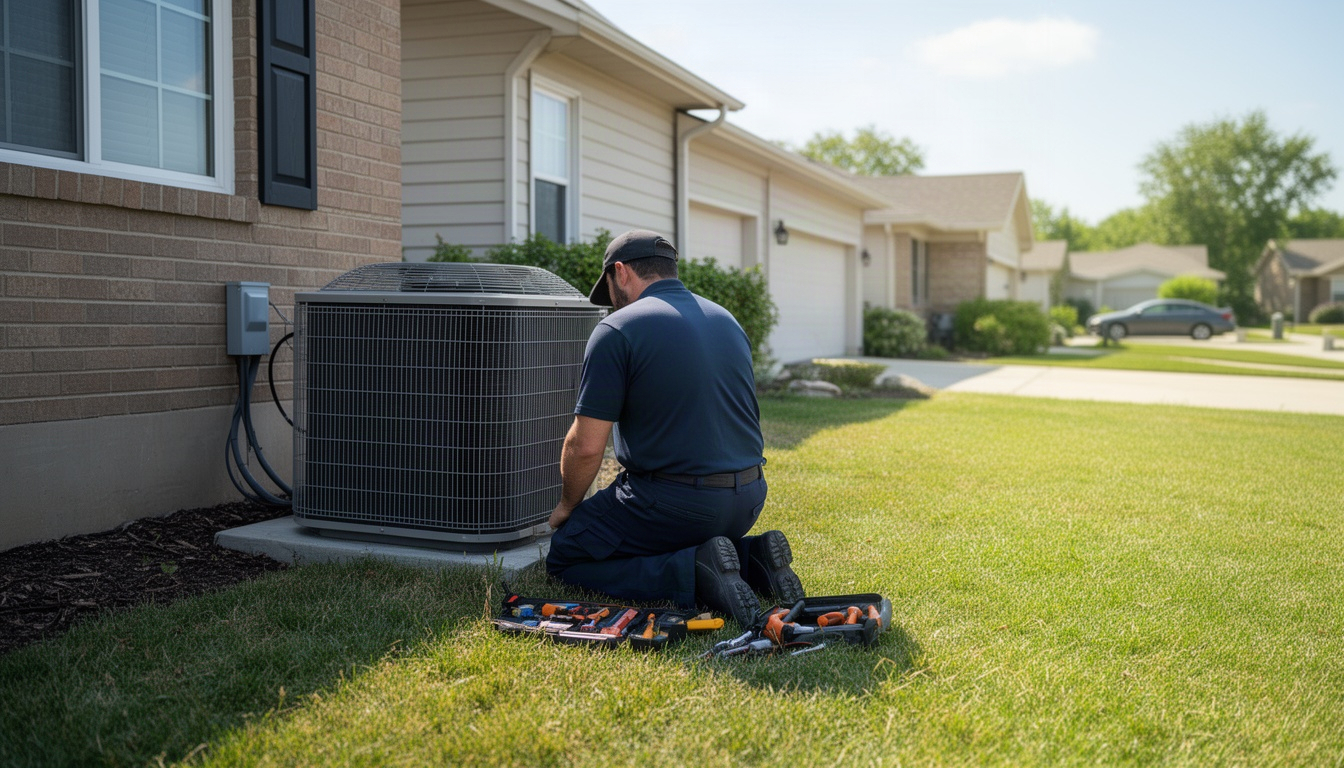
You finish an HVAC replacement on Tuesday. The homeowner's happy. You drive to the next job. By Friday, you still haven't sent an invoice because you're in the field and your office person is buried in scheduling calls. The money doesn't hit your account until the following week - if the client remembers to pay at all.
That gap between "job done" and "invoice sent" costs you money twice: once in late payment, and again in the time you spend chasing it down.
Jobber invoicing is built to close that gap. It lets you send an invoice the same day the job finishes - straight from your phone, if you want - and collect payment right there on the driveway. No office work required. No waiting.
Here's what you actually need to know about how it works, what it costs, and whether it's the right fit for your business.
What Is Jobber Invoicing?
Jobber invoicing is a built-in billing tool inside the Jobber field service platform. It connects your jobs, clients, and payment processing into one workflow: you complete a job, Jobber auto-drafts an invoice from the job details, you send it to the client, and they pay online or by card right there.
It's not a standalone invoicing app. It lives inside Jobber's broader CRM and job management system, which means your invoice pulls data from the estimate, the job notes, and the client record automatically. No re-entering numbers.
Invoicing is available on all three Jobber paid plans:
- Core: Basic invoicing. You create and send invoices manually. No automated follow-ups.
- Connect: Automated payment reminders, two-way QuickBooks sync, batch invoicing for recurring clients.
- Grow: Everything in Connect, plus advanced reporting and team collaboration features.
If you're on the Core plan and want automated reminders or QuickBooks sync, you'll need to upgrade to Connect. That's the real threshold for most small contractors.
How Does Jobber Invoicing Work? (Step-by-Step)
The workflow is straightforward. Here's what happens from job completion to payment in your bank account.
Creating and Sending an Invoice
Step 1: Job completes. Your technician marks the job as done in the Jobber app. The system captures the service date, client name, address, and any line items - parts, labor, travel fees - that were added during the job.
Step 2: Invoice auto-drafts. Jobber creates an invoice template with all that data already filled in. You review it on your phone or desktop, add any final notes or adjustments, and hit send.
Step 3: Client receives it. The invoice lands in their email with a link to pay online. They see your logo, the job details, the total, and a "Pay Now" button.
Step 4: Payment lands. If they pay by card, the money goes through Jobber Payments. If they pay by ACH bank transfer, it takes a couple of business days. Either way, it hits your account automatically.
Step 5: QuickBooks syncs (if you're on Connect or Grow). The invoice, client record, and payment status sync to QuickBooks Online or Desktop. Your accounting is updated without manual entry.
That's the happy path. Most jobs follow it. The time from "job done" to "invoice sent" is now minutes, not days.
Automated Payment Reminders
If you're on Connect or Grow, Jobber can send automated reminders when an invoice goes unpaid.
You set it up once. Then Jobber handles it:
- Day 0: Invoice sent.
- Day 7: Automated reminder email: "We noticed you haven't paid yet. Here's your invoice."
- Day 14: Final notice: "This invoice is now overdue. Please pay today."
You can customize the timing. Some contractors send the first reminder after three days, the second after ten. It depends on your terms and your clients.
The impact is real. Businesses that automate their follow-ups consistently collect faster than those sending reminders by hand. For a plumbing company sending a steady stream of invoices every week, that difference in payment speed shows up quickly in your bank balance.
Batch Invoicing for Recurring Clients
If you have recurring clients - say, a landscaping company with fifteen weekly maintenance accounts, or a pest control business with forty monthly service stops - you don't want to create each invoice one at a time.
Jobber's batch invoicing feature lets you generate and send multiple invoices at once. You select the clients, confirm the service dates and amounts, and send them all in one action. It takes a couple of minutes instead of most of your afternoon.
Jobber Invoicing Pricing: What Does It Actually Cost?
The subscription cost is only half the story. You also pay for payment processing. Here's the real picture.
Plan Pricing
| Plan | Monthly Cost | Annual Cost (25% off) | Key Invoicing Features |
|---|---|---|---|
| Core | $49 | $39/mo | Manual invoicing, basic templates |
| Connect | $149 | $119/mo | Automated reminders, QuickBooks sync, batch invoicing |
| Grow | $299 | $239/mo | Everything in Connect + advanced reporting |
Most contractors land on Connect. You need the automated reminders and QuickBooks sync to save time and stay on top of cash flow. According to verified sources, "Jobber Connect ($149/month, up to 5 users) is the sweet spot for most service crews."
Payment Processing Fees
When a client pays an invoice through Jobber Payments, you pay a processing fee. According to verified sources, "Pricing starts at 2.9% card fees," which aligns with the standard rate of 2.9% + $0.30 per transaction for credit and debit card payments.
On a realistic month - say, a few dozen invoices totalling a few thousand dollars - those fees add up to something in the range of a couple hundred dollars. Over a full year, it's a meaningful line item, so it's worth factoring in when you're thinking about the total cost.
Is that expensive? It's in line with what most traditional merchant processors charge. And you're only paying it on money that actually comes in, not on invoices that are still outstanding.
ACH bank transfers have a lower fee - usually around 1% or a flat dollar per transaction. If your clients will pay by ACH, that's the cheaper route. But most homeowners and small businesses prefer the convenience of a card.
Annual vs. Monthly Billing
If you pay annually instead of monthly, you save roughly 25% across all plans. For a Connect subscriber, that works out to a few hundred dollars a year. If you're confident you'll stick with Jobber, annual billing is worth it.
Jobber Invoicing vs. Manual Billing: Is It Worth Switching?
You might be thinking: "I'm already sending invoices. Why change?"
Fair question. Let's look at the real cost of manual invoicing.
Time Cost
Say you're sending twenty invoices a week manually. Each one takes a couple of minutes: open the template, fill in the client name, job details, and amount, save it, attach it to an email, send it. Multiply that across a full year and you're looking at dozens of hours spent on pure administrative work.
Jobber invoicing cuts that down dramatically - you're reviewing and sending, not building from scratch. That time adds up fast, especially if you're the one doing it yourself at the end of a long day.
Payment Speed
Manual invoicing also means manual follow-up. You send an invoice. A week goes by. You send a reminder email. Another week goes by. You make a phone call. By then, three weeks have passed.
With Jobber's automated reminders on Connect, the same client gets a nudge on Day 7 and Day 14 without you lifting a finger. That alone can cut your average payment time nearly in half - which means more cash in your account sooner, every single month.
Side-by-Side Comparison
| Factor | Manual Billing | Jobber Invoicing |
|---|---|---|
| Time per invoice | A few minutes | Under a minute |
| Annual time cost | Dozens of hours | A handful of hours |
| Payment reminders | Manual (you send) | Automated (Jobber sends) |
| Average days to payment | Longer | Shorter |
| Error rate | Higher (manual entry) | Lower (auto-populated) |
| Mobile invoicing | No | Yes |
| Late payment tracking | Manual | Built-in |
The value is straightforward: you save time, get paid faster, and make fewer mistakes. For most contractors on Connect, the subscription pays for itself within the first month just from time savings.
What Are the Limitations of Jobber Invoicing?
Jobber invoicing is solid for most home service contractors. But it's not perfect. Here's where it falls short.
Core Plan Lacks Automation
On the Core plan, you don't get automated payment reminders or QuickBooks sync. You're doing the follow-up manually. For a small operation with just a handful of invoices a week, that's manageable. For anything bigger, it becomes a bottleneck.
Limited Template Customization
Jobber's invoice templates are functional but basic. You can add your logo, change colors, and tweak the layout slightly. But if you want a highly customized design - something that matches your website or includes unique custom fields - you'll hit a wall.
No Direct Stripe Integration
Jobber Payments runs on Stripe under the hood, but you can't plug in your own Stripe account. All payments route through Jobber's system. Some contractors prefer direct Stripe integration for more control over their payment data and reconciliation. That's not an option here.
No Built-In Time-and-Materials Automation
If you bill by the hour or by materials used on-site, Jobber doesn't auto-populate invoice line items from time tracking or material logs. You have to add them manually. For a roofing company doing fixed-price jobs, this isn't a problem. For an electrician doing service calls with variable labor, it's extra work.
QuickBooks Sync Has Gaps
The two-way sync between Jobber and QuickBooks is good, but it doesn't transfer everything. Job photos, invoice attachments, and detailed notes don't sync. If you're relying on QuickBooks as your single source of truth for job documentation, you'll still need to keep photos and notes in Jobber separately.
How to Get Paid Faster with Jobber Invoicing
You've got the tool. Now here's how to actually use it to speed up payment.
Send Invoices Within 24 Hours of Job Completion
The faster you send, the faster you get paid. Invoices sent the same day a job wraps up tend to get paid noticeably faster than those sent days later.
Why? Momentum. The client is still thinking about the work. They're satisfied. They're ready to pay. If you wait a week, they've moved on. They've got other bills. Your invoice is now competing for attention.
Set a rule: the invoice goes out the same day the job finishes. On your phone, in the driveway, before you drive to the next call. It takes ninety seconds.
Enable Card-on-File for Repeat Clients
If a client has used you a few times, ask them to save their card in Jobber. Then, when you send the next invoice, they can approve payment with one click - no re-entering their card number, no friction.
For a pest control company with a roster of monthly clients, card-on-file can turn a multi-day wait into same-day payment. That's a meaningful difference for cash flow.
Use Deposit Invoices Before Work Starts
Before you schedule a big job - a roof replacement, a full HVAC system install, a major remodel - send a deposit invoice. Ask for a portion upfront.
This does two things: it confirms the client is serious, and it puts cash in your account before you buy materials or schedule labor. Jobber lets you create a deposit invoice, send it, and apply the payment to the final invoice automatically.
Set Up the 3-Touch Reminder Sequence
On Connect or Grow, configure automated reminders like this:
- Day 0: Invoice sent
- Day 7: "We noticed this invoice is unpaid. Here's the link to pay."
- Day 14: "This invoice is now overdue. Please pay today."
Don't skip the reminders. Most late payments aren't malicious - they're just forgotten. A friendly nudge on Day 7 catches the majority of them before they become a real problem.
Accept Multiple Payment Methods
Jobber Payments supports cards, ACH, and financing options for larger jobs. The more ways a client can pay, the faster they will. Some people hate entering their card details and will pay by ACH without hesitation. Others want to finance a big job. Let them.
Frequently Asked Questions About Jobber Invoicing
How much does Jobber charge for payment processing?
Direct Answer: 2.9% + $0.30 per transaction for credit and debit card payments through Jobber Payments.
ACH bank transfers are cheaper - usually around 1% or a flat dollar per transaction - but most clients prefer cards for the convenience. It's worth doing the math on your own monthly volume to understand what processing fees will look like for your business.
Does Jobber invoicing sync with QuickBooks?
Direct Answer: Yes, but only on Connect and Grow plans. Core plan users don't get QuickBooks sync.
The sync is two-way: invoices, clients, payments, and service items flow between Jobber and QuickBooks Online or Desktop. However, job photos, invoice attachments, and detailed notes don't sync. You'll keep those in Jobber. If you're on Core and need QuickBooks integration, you'll need to upgrade to Connect.
Can you send invoices from the Jobber mobile app?
Direct Answer: Yes. You can create, review, and send invoices directly from the Jobber mobile app on iOS or Android.
You can also collect payment on-site using card-on-file or manual card entry. Some advanced customization options are easier on desktop, but the core invoicing workflow is fully mobile. This is one of Jobber's biggest strengths for field teams.
How does Jobber compare to invoicing directly in QuickBooks?
Direct Answer: Jobber invoicing is faster for field service work because it auto-populates from your job details. QuickBooks invoicing requires manual entry.
If you're already in QuickBooks for accounting, you can invoice from there - but you'll re-enter client names, job details, and amounts every time. With Jobber, that data flows automatically from the job. For a contractor sending a steady volume of invoices each week, Jobber saves real time. QuickBooks is the better fit if you need highly customized invoices or complex accounting workflows.
Can you add late fees to Jobber invoices?
Direct Answer: Yes, but you have to add them manually. Jobber doesn't automatically calculate or apply late fees based on payment terms.
You can add a line item called "Late Fee" to an overdue invoice and send it as a revised invoice. It's not automated, so you'll need to track which invoices are overdue and add the fee yourself. If late fees are a regular part of how you do business, this is a limitation worth knowing about upfront.
What invoice customization options does Jobber offer?
Direct Answer: Basic customization: logo, colors, layout tweaks, and custom fields. Advanced design customization is limited.
You can add your company name, logo, and contact info, and adjust the color scheme and section order. But if you want a fully branded, custom-designed invoice that looks nothing like the standard template, Jobber won't give you that level of control.
Which Jobber plan do you need for automated invoice follow-ups?
Direct Answer: Connect or Grow. The Core plan does not include automated reminders.
On Connect and Grow, you can set up automated emails that go out on Day 7 and Day 14 - or whatever schedule you choose - if an invoice stays unpaid. Core plan users have to send reminders manually. For most contractors, the automated reminders alone justify the upgrade from Core to Connect.
The Real Payoff
Here's the honest truth: Jobber invoicing won't transform your business overnight. But it will fix a real problem that costs you money every single week.
You finish a job. You send an invoice the same day. The client pays within a week instead of three. Your office person spends a few hours a year on invoicing instead of dozens. Your QuickBooks stays current without manual reconciliation.
That's not flashy. But it's the difference between cash flowing smoothly and cash getting stuck in a bottleneck.
If you're on Core and sending just a handful of invoices a week, you might be fine where you are. But if you're sending more than that, or if you're tired of chasing late payments, Connect is the upgrade that pays for itself.